
Mute a monitor
Silence a monitor for a defined window without losing its state. Useful for maintenance windows or active triage.
Mute silences a monitor for 15 min, 1 h, 4 h, 24 h or until a custom date. While muted, the scheduler skips the monitor and no notifications are sent. State is preserved: when the mute ends, the monitor resumes exactly where it left off.
How to mute
Open a monitor's detail page (or the action menu in the monitors list) and click Mute. Pick a preset duration or a custom end date.
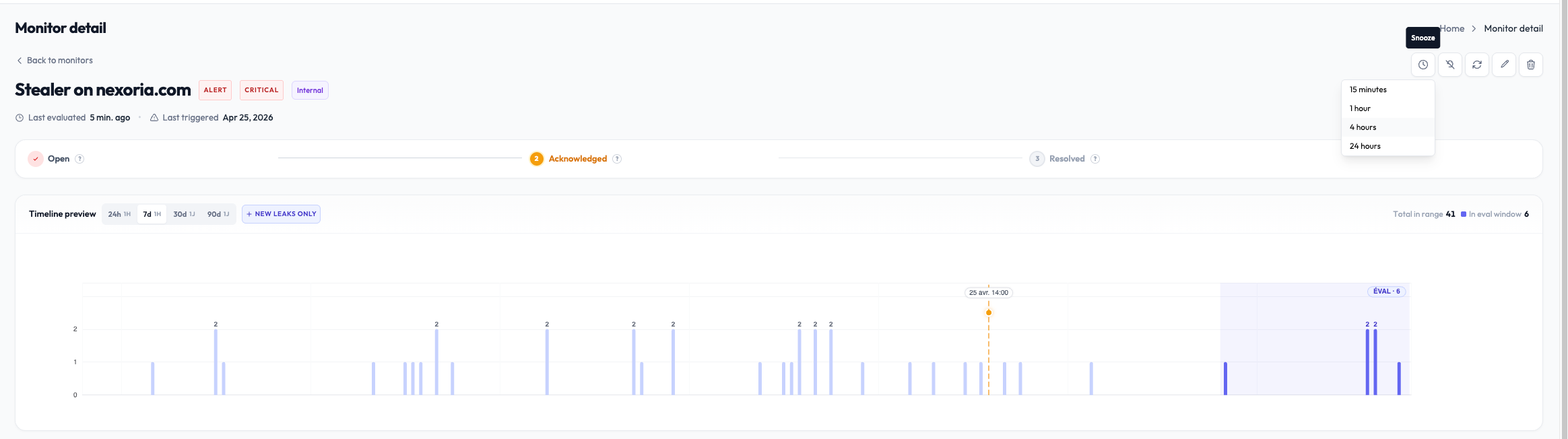
The monitor's status changes to Muted in the list. The mute end time is displayed.
What mute preserves
Muting does not destroy any state. While muted:
- The anti-replay floor stays where it was
- Open events stay open
matched_countstays at its current value- The activity timeline of any open event continues to record system activity (background ingestion still happens; just not notifications)
When the mute ends, the monitor resumes evaluating new leaks. Any leaks that arrived during the mute are still accounted for at resume time. They get processed against the existing anti-replay state.
Mute vs. disable
Both stop notifications. The difference is what happens to state.
| Action | Notifications | State preserved | Use case |
|---|---|---|---|
| Mute | Skipped | Yes: anti-replay, open events, matched_count, history | Planned maintenance, triage breaks |
| Disable | Skipped | No: last_resolved_at resets to zero | Decommissioning a monitor permanently |
If you re-enable a disabled monitor, every matching leak counts as new, even ones already known. This produces a flood of "new" alerts on the next evaluation. Avoid disabling unless you really want this.
Common use cases
Planned maintenance window
Your platform is undergoing a deploy or migration that will produce expected leaks (e.g. a backfill that re-ingests an old dump). Mute the affected monitors for the duration of the operation.
Active triage
You're working on an incident and don't want a flood of reminders during the next hour. Mute for 1h to focus, then unmute when you're ready.
After-hours silence
If you don't want certain monitors to wake your team at night, mute them during off-hours and unmute them at the start of the next business day. This is manual today; an automatic on-hours/off-hours schedule is on the roadmap.
Mute end behaviour
When the mute end time is reached, the monitor automatically resumes. You can also manually unmute earlier by clicking Unmute on the monitor page.
The first evaluation after unmuting is a normal evaluation: it picks up any new matching leaks and may trigger if the threshold is met. State that was preserved during the mute (open events, anti-replay floor) is honored.
Mute and renotification
Mute takes precedence over renotification. While muted:
- Time-based renotification timers continue counting but no notification is sent at the threshold
- Volume-based renotification thresholds also accumulate silently
When the mute ends, the next evaluation can fire either reminder if the threshold has been crossed during the mute, but only ONE notification is sent (the floor mechanism still applies).
What's next
- Renotification: control how often reminders fire on an open event when the monitor is active.
- Deduplication: how matching leaks are tracked against an event.