
Receive notifications
Configure Slack, Microsoft Teams, Discord, custom webhooks and email so Stealed alerts land where your team operates.
Stealed delivers every alert simultaneously to all the channels you attach to a monitor. You configure channels once at the organization level and reuse them across monitors.
Open Monitoring → Channels and click New channel.
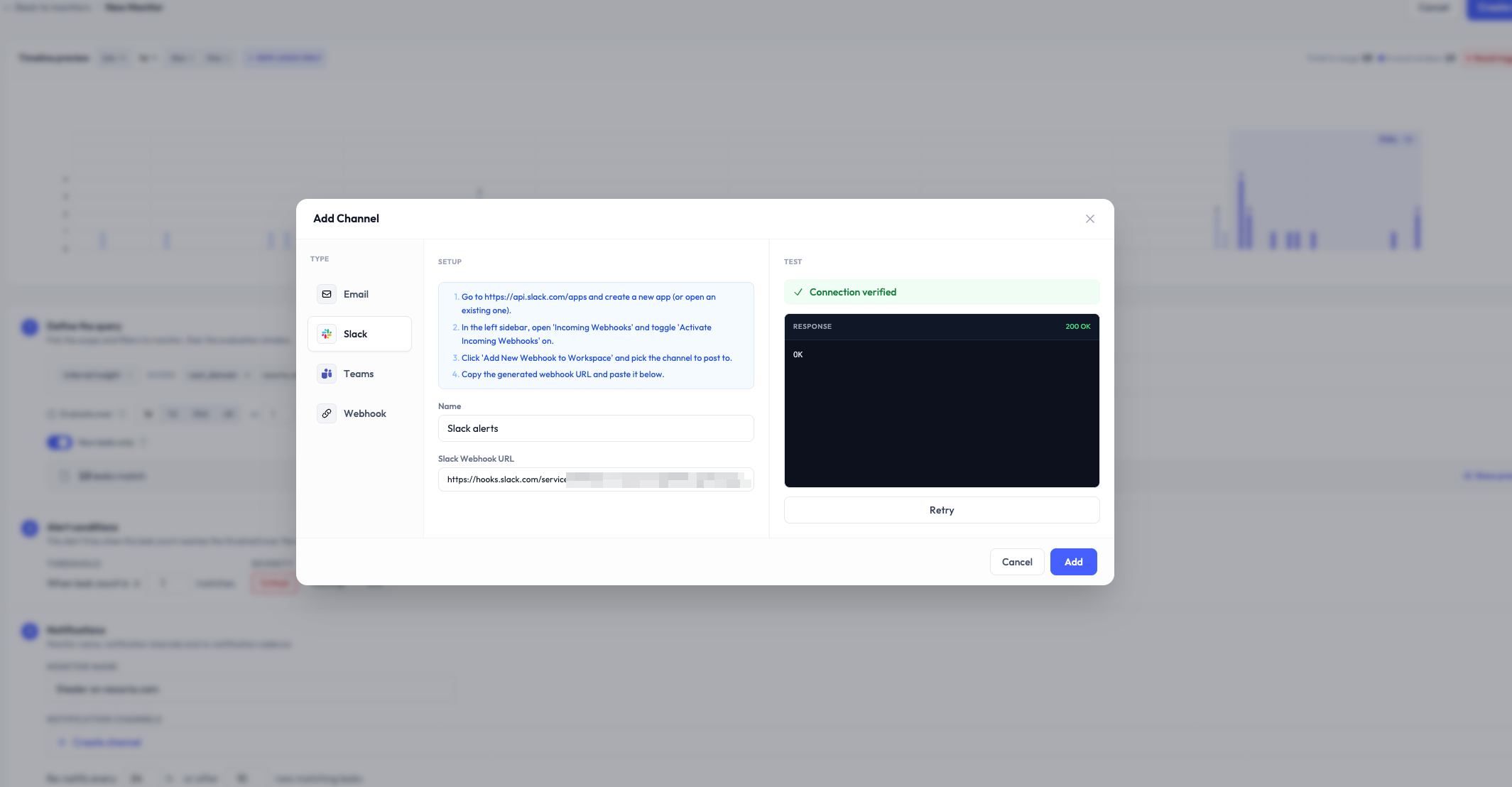
Slack
Slack channels use the official Slack OAuth integration. The Stealed Slack app posts alerts as a bot user with a custom message format.
Setup
- Click New channel → Slack.
- Click Install on Slack. You're redirected to Slack's OAuth flow.
- Pick the workspace and the channel where alerts should land. The Stealed bot is added to the chosen channel.
- Back in Stealed, name the channel (e.g.
#sec-alerts) and save.
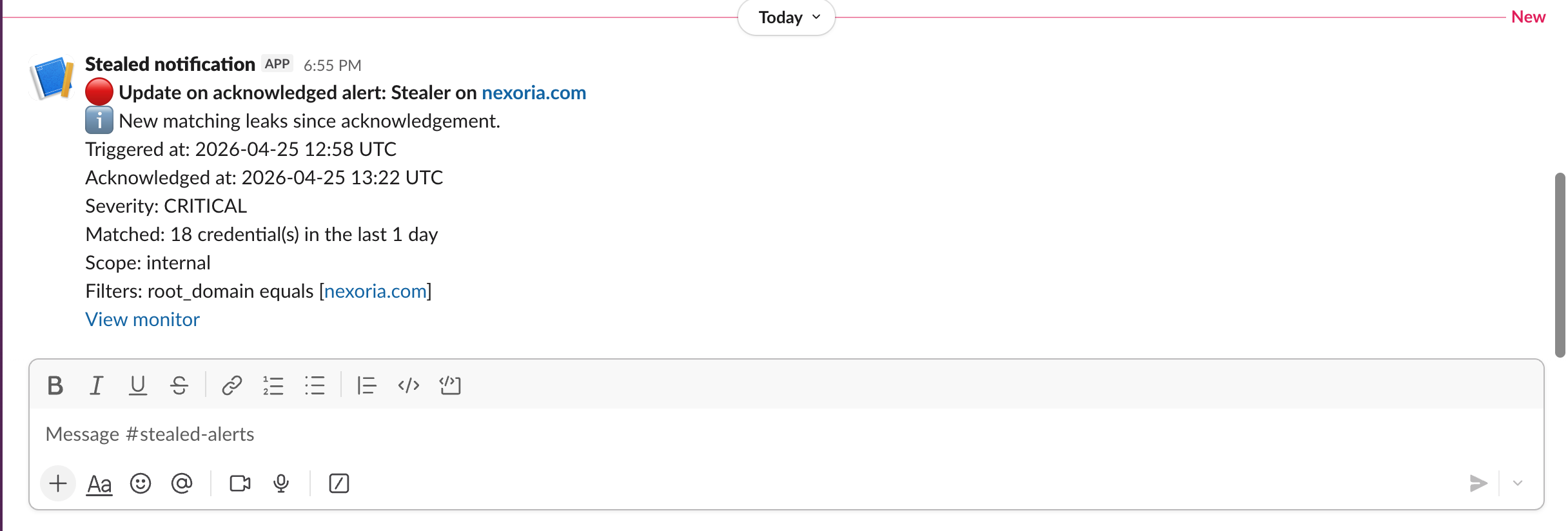
Message format
Each alert renders as a Slack message with:
- A red warning header for
criticalseverity, amber forhigh, blue for informational - The monitor name and matched count
- A direct link to the event in the Stealed dashboard
- Mentions of the assignee if already taken
- Quick-action buttons: Acknowledge, Open in Stealed
Microsoft Teams
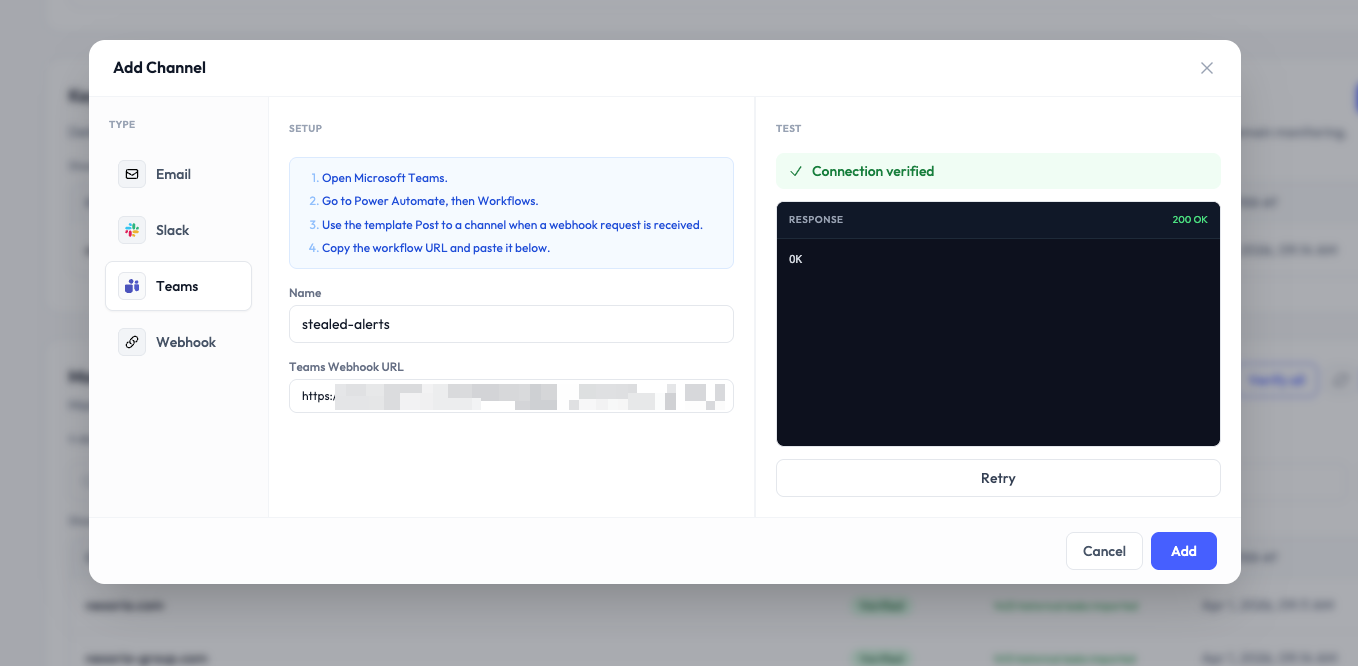
Teams channels use incoming webhook URLs. You generate the webhook on the Teams side, paste it into Stealed.
Setup
- In Microsoft Teams, open the target channel, then ... → Connectors → Incoming Webhook.
- Configure the connector (name, icon optional), copy the generated URL.
- In Stealed, New channel → Microsoft Teams, paste the URL, name the channel and save.
- Use the Test connection button to send a sample message. You should see it appear in Teams within seconds.
Message format
Teams renders Stealed alerts as Adaptive Cards with the same content as Slack: severity, monitor name, matched count, link to event.
Discord
Discord channels use a webhook URL generated on the Discord server.
Setup
- In Discord, open Server Settings → Integrations → Webhooks.
- Click New Webhook, pick the target channel and copy the webhook URL.
- In Stealed, New channel → Discord, paste the URL, name the channel and save.
- Use the Test connection button to send a sample message. It appears in the Discord channel within seconds.
Message format
Discord renders each alert as an embed whose side bar takes the severity colour (red, orange, blue), with the monitor name linking to the event, the severity, the matched count, the scope and the filters. State changes (acknowledged, resolved, reopened) arrive as a one-line message when the option is enabled on the channel.
Custom webhook
If your alert routing logic lives outside Slack and Teams (PagerDuty, Opsgenie, your own bot, etc.), use a custom webhook.
Setup
- New channel → Webhook.
- Provide an HTTPS URL that accepts JSON POST.
- Optionally provide a shared secret. If set, Stealed signs every payload
with HMAC-SHA256 in the
X-Stealed-Signatureheader. - Save and click Test connection. Stealed sends a sample payload and you should see a 2xx response.
Payload
{
  "event_id": "evt_01JN5W9...",
  "monitor_id": "mon_01HX2K...",
  "monitor_name": "Acme - Stealer logs",
  "severity": "critical",
  "trigger_at": "2026-04-24T14:02:35Z",
  "matched_count": 147,
  "delta_count": 23,
  "type": "trigger",
  "url": "https://app.stealed.io/events/evt_01JN5W9..."
}
The type field is one of: trigger, renotify, comment.
Signature
If you set a shared secret, every request includes:
X-Stealed-Signature: t=1745842955,v1=<hex_hmac>Compute hmac_sha256(secret, "{t}.{body}") and compare to v1. Reject
the request if they differ or if t is older than 5 minutes.
Email channels accept a list of recipients. Every alert is sent as an HTML email with a plain-text fallback.
Setup
- New channel → Email.
- Enter a comma-separated list of email addresses.
- Optionally pick a default sender display name (defaults to "Stealed Alerts").
- Save.
You can have several email channels (e.g. sec-team@acme.com for the
security team, oncall@acme.com for the on-call rotation).
Attach a channel to a monitor
Once a channel exists, attach it from the monitor configuration. A single channel can be attached to many monitors. A single monitor can have many channels.
Removing a channel from a monitor stops new alerts from landing there but does NOT delete the channel.
What's next
- Incident handling: what happens after the alert lands.
- Renotification: control the cadence of reminders.